
Microsoft Teams Room Installation in Ottawa: What It Involves
More Ottawa offices are turning their boardrooms into Microsoft Teams Rooms: a room where anyone can walk in, tap one button on the table and be in the meeting, with the camera, microphones and screen already working. Done well, nobody has to plug in a laptop or hunt for the right cable. Done badly, it’s a pricey TV that half the staff avoid. Here’s what a Teams Room is, what installation actually involves, and what to sort out before the installer shows up.
What is a Microsoft Teams Room?
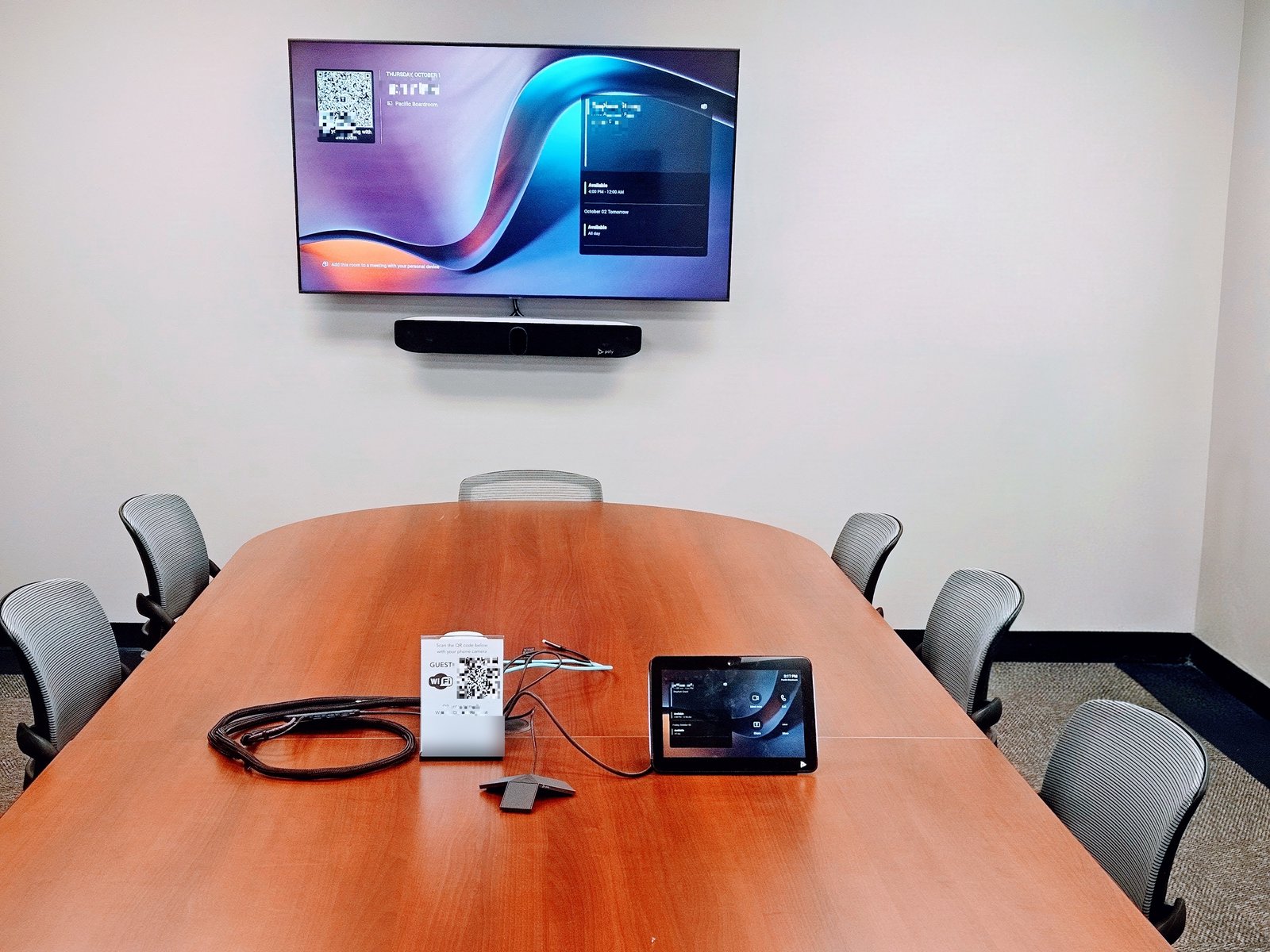
A Teams Room is a dedicated, Microsoft-certified video conferencing system that belongs to the room, not to a person. It signs into Teams with its own room account, shows up in Outlook as a bookable room, and joins scheduled meetings with one tap. A typical small-to-large boardroom setup has four parts:
- A certified video bar mounted under the display, with the camera, microphones and speakers built in.
- A touch controller on the table to join, start and control meetings.
- Extra table microphones for longer tables, so people at the far end are heard clearly.
- The display, plus a cable at the table for wired laptop sharing (HDMI or USB-C).
Teams Rooms on Android vs. Windows
There are two flavours. Teams Rooms on Android runs on the video bar itself, with no separate PC, which keeps the system simple and the rack small. Teams Rooms on Windows uses a small compute unit and suits larger or more complex rooms, such as dual displays or more advanced audio. For most boardrooms in the 6–14 seat range, an all-in-one Android-based video bar is the cleaner choice.
A recent Ottawa boardroom we completed
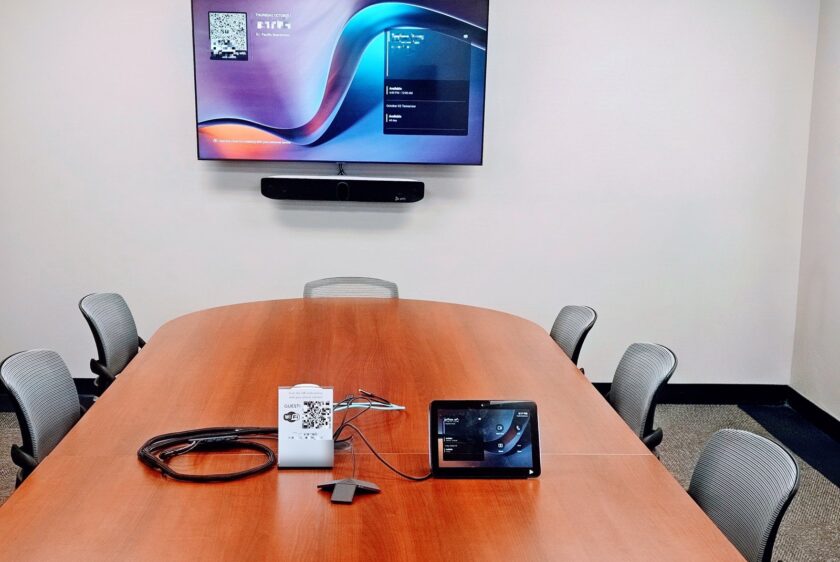
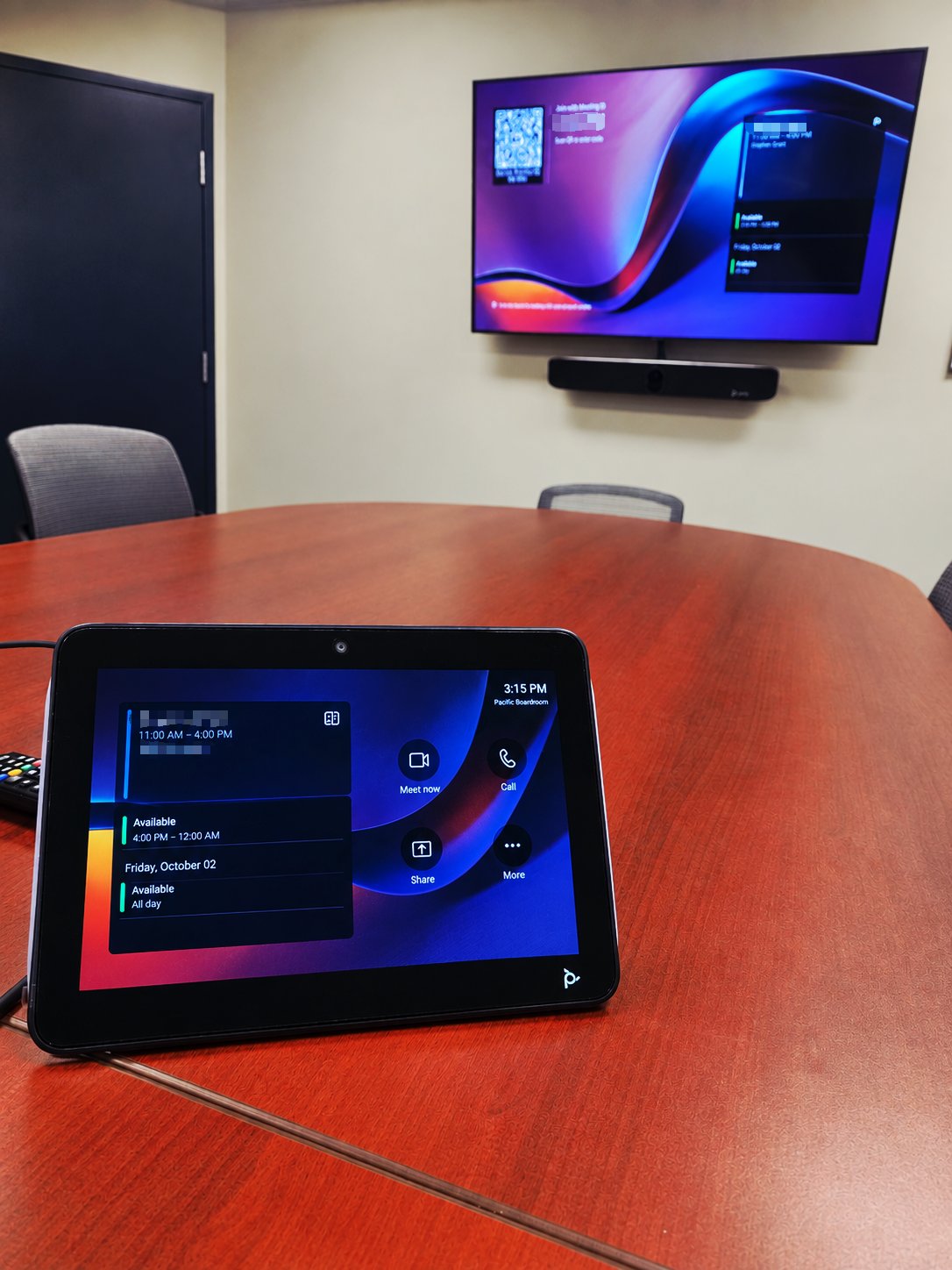
We recently finished a boardroom Teams Room in Ottawa built around a Poly Studio X72 video bar, a Poly TC10 touch controller and a Poly table microphone. HP lists the X72 as a premium all-in-one video bar for large conference spaces, and it runs Microsoft Teams Rooms directly on the bar. The video bar mounts just below the TV so the camera sits at eye level for the people on the far end. The TC10 sits on the table and shows the room’s calendar, so staff can see what’s booked and join with a single tap. The table mic covers the far end of a long table, where the bar’s own microphones would start to struggle.
The client’s IT team handled the Microsoft 365 side: the room account and licences. We handled the physical install, cabling and setup, then walked staff through using it.
What a Teams Room install actually involves
1. Mounting the display and video bar
The TV goes on a proper wall mount anchored to studs or blocking, at a height where the screen is comfortable to watch from the table. The video bar mounts directly below (or sometimes above) the screen, centred, so the camera frames the whole table. Getting this height right matters more than people expect: too high and everyone on the far end looks down on the room.
2. Cabling the room cleanly
Power and data go behind the TV, with the cables hidden in the wall. From there, a cable path runs to the table, usually through a floor box or a table grommet. That carries the touch controller’s connection, the table mic and the laptop-sharing cable. On longer runs we use active fibre HDMI or USB-C cables, because cheap passive cables are the number one cause of flickering screens and dropped connections in meeting rooms.
3. Network and IT coordination
Teams Rooms devices need a wired network connection. Some accessories (like touch controllers) are powered over the network (PoE), and the devices need outbound access to Microsoft’s services. We confirm with the client’s IT team in advance: which network jack or switch port, whether PoE is available, and any firewall or proxy rules. This is where most delays happen, so it’s worth settling before install day.
4. Room account, licensing and calendar
Each Teams Room signs in with its own room (resource) account, set up by the client’s Microsoft 365 admin. Microsoft currently offers two Teams Rooms licences:
- Teams Rooms Basic: core meeting features at no extra cost, for up to 25 rooms per organization.
- Teams Rooms Pro: adds features like remote device management, analytics, dual-screen support and more advanced meeting layouts. It’s required beyond 25 rooms.
Licensing is per room, and Microsoft updates these plans, so check the current details with your Microsoft partner or IT team before you buy.
5. Commissioning and a staff walkthrough
Once everything is connected, we update the firmware, pair the controller and table mic, set the camera framing and audio levels, and run test calls in and out. Then we show staff the three things they’ll actually use: joining a scheduled meeting, starting an ad-hoc call and sharing a laptop.
Planning a more general meeting space rather than a full Teams Room? Our guide on how to set up a boardroom or conference room covers layout, lighting and acoustics.
Frequently asked questions
Can we use our own Teams licence instead of a room licence?
No. A Teams Room needs its own room account and a Teams Rooms licence (Basic or Pro). A regular user licence isn’t meant for a shared room device.
Do we still need a laptop in the room?
Not for meetings. The room joins Teams calls on its own. A laptop is only needed if someone wants to share their screen, which they can do with the table cable or by joining from their laptop and sharing.
How long does a Teams Room install take?
A typical boardroom with the wall power and data already in place is usually a one-day install, including setup and testing. Rooms that need new cable runs, a floor box or wall work take longer, and we scope that during the site visit.
Thinking about a Teams Room in Ottawa?
AV Geeks designs and installs boardroom and meeting-room systems across Ottawa, from single Teams Rooms and boardroom AV setups to full commercial audio-visual installations. Tell us about your room and we’ll recommend the right setup. Request a quote or call us at 613-627-0660.